
Relocating a business is exciting. New space, new neighborhood, new opportunities. But if your Google Business Profile still shows your old address, customers will show up at the wrong door, and your local SEO rankings could take a serious hit.
Keeping your Google Business Profile (formerly Google My Business) accurate is one of the most important things you can do after a move. It affects how you appear in local searches, how customers find you, and how Google’s algorithm perceives your credibility. This guide walks you through exactly how to update your address, verify your new location, collect fresh Google reviews, and avoid the common mistakes that get accounts suspended.
How to Change Your Address on Google Business Profile
The process is straightforward, but you need to be logged into the correct Google account, the one with access to the business you’re updating.
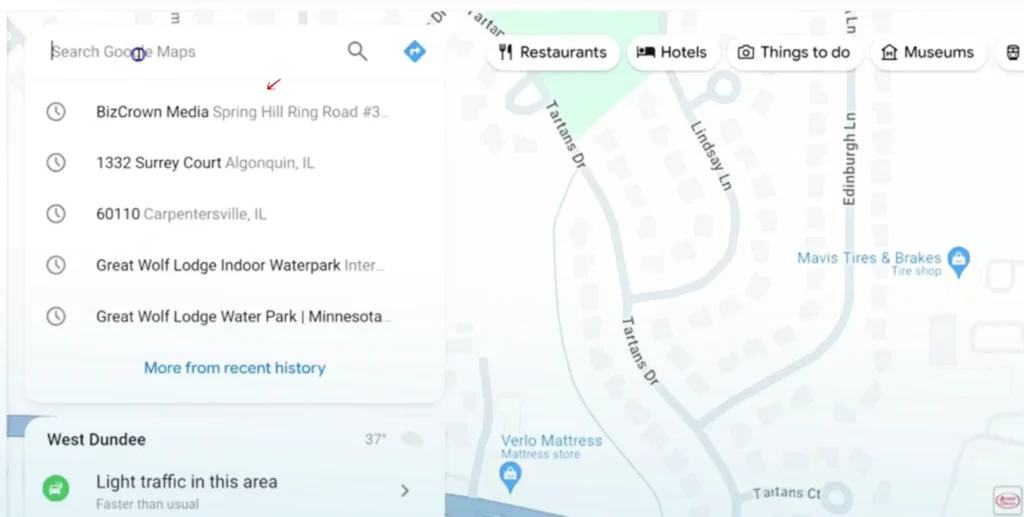
Step 1: Search for your business on Google Maps
Head to Google Maps and search for your business by name. A popup with your business details will appear on the left side of the screen.
Step 2: Access your Business Profile
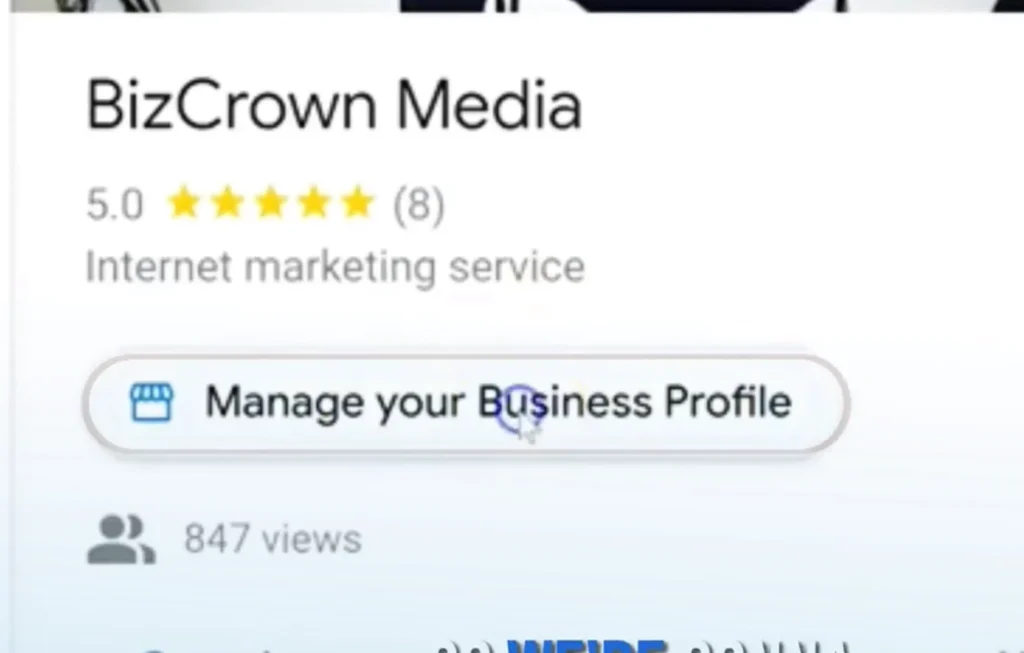
Click “Manage your business profile” in the popup. This takes you directly to your Google Business Profile dashboard.
Step 3: Edit your location
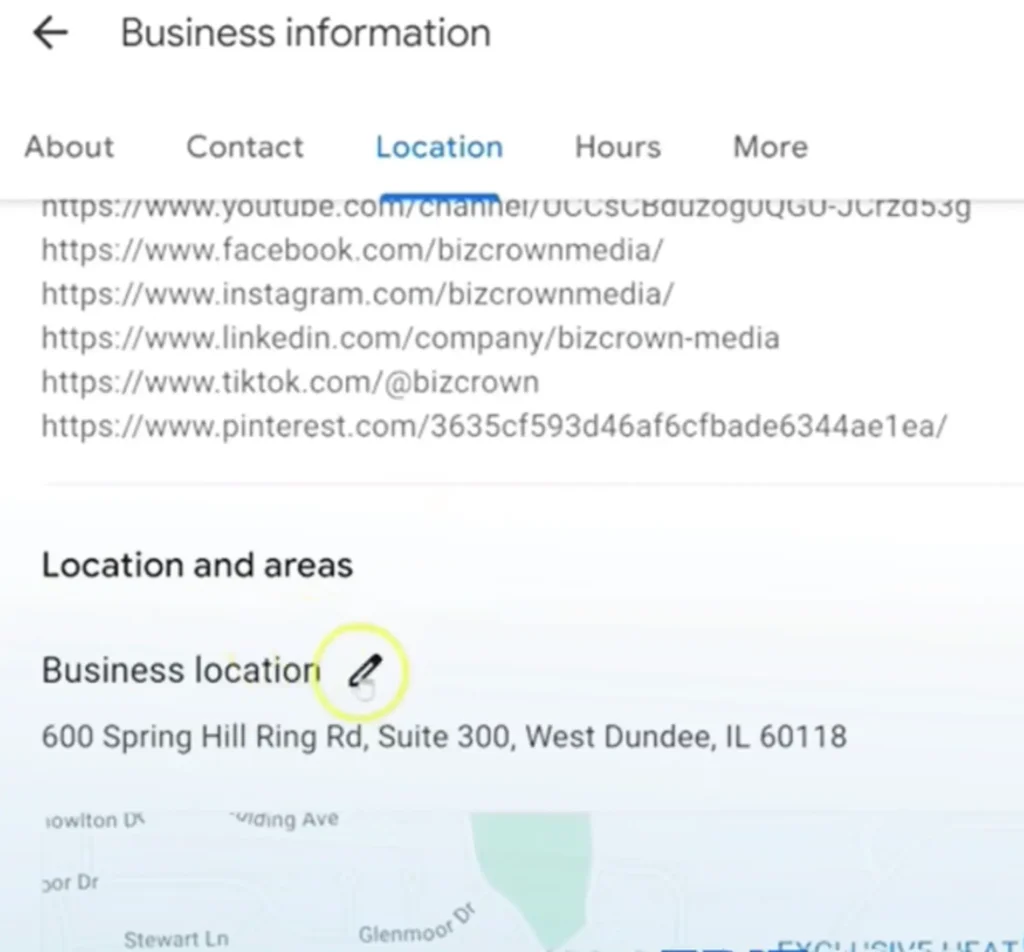
Click “Edit profile”, then select “Location.” You can also find this by scrolling down under the “About” tab until the Location section appears.
Step 4: Update your address
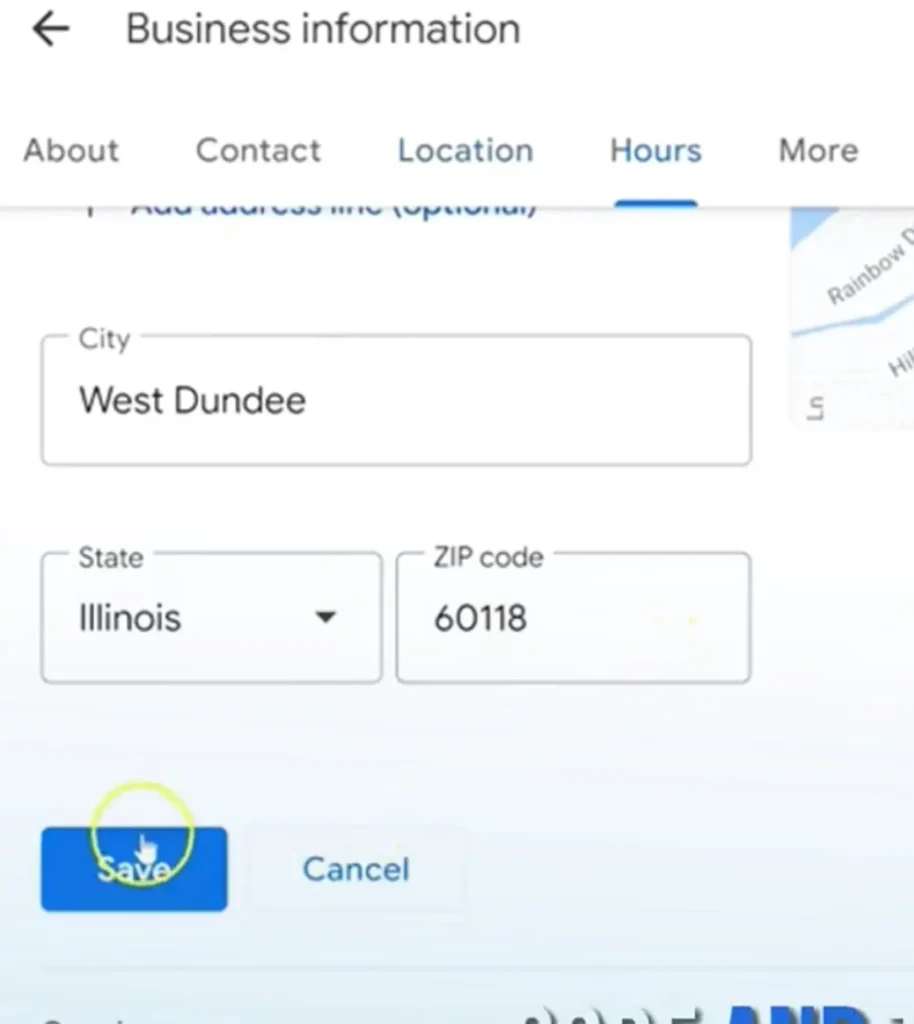
Click the edit (pencil) icon, then update your street address, city, state, and zip code. When you’re done, hit Save.
One thing worth noting: If you run a home-based business and don’t want your address publicly visible, you can toggle off the option to display your address to customers. Your profile will still appear in local search results, Google just won’t show the physical address.
How to Verify Your New Location
After saving your new address, Google may ask you to verify it. This step is critical. Unverified listings can lose visibility in local search results, and in some cases, disappear from Google Maps entirely.
Verification methods vary depending on your business and location, but the most common options include:
- Postcard by mail: Google sends a postcard with a verification code to your new address. This typically takes 5–14 days.
- Phone or email verification: Available for some businesses, you’ll receive a code instantly.
- Video verification: Increasingly common, Google may ask you to record a short video of your business location.
Complete verification as quickly as possible. Until your new address is verified, your local rankings may fluctuate.
Notifying Existing Customers About Your Move
Updating Google is step one. But your loyal customers need to hear from you directly, don’t assume they’ll find the new address on their own.
A few ways to spread the word:
- Email your subscriber list with a clear announcement that includes your new address, move date, and any changes to operating hours.
- Post on social media before and after the move. A countdown series can build awareness without feeling like a one-off announcement.
- Update your website, especially your contact page, footer, and any embedded Google Maps widget.
- Check other directory listings, Yelp, Apple Maps, Bing Places, and any industry-specific directories should all reflect your new location.
Consistent NAP (Name, Address, Phone number) data across all platforms is a cornerstone of local SEO. Inconsistencies confuse search engines and erode trust.
How to Get Google Reviews Instantly After Your Move
Fresh reviews signal to Google, and to potential customers, that your business is active and thriving at its new location. The good news? Getting them is easier than most business owners realize.
Get Your Google Review Link (Desktop)
- Log into your Google Business Profile dashboard.
- On your dashboard, click the down arrow or look for the “Ask for reviews” button.
- A popup will appear with a direct review link. From here, you can email it directly (your email client will open with the link pre-loaded), send it via text, or copy it to share anywhere.
When a customer clicks that link, they land directly on a page where they can leave you a star rating and written review, no searching required.
Get Your Google Review Link (Mobile)
- Download the Google Maps app and log in with your business account.
- Tap the “Business” tab at the bottom of the screen.
- Scroll until you see “Share profile.”
- Tap it, then choose to send via text, email, or copy the link.
That’s it. The link takes customers straight to your review page.
Tips for Getting More Reviews Quickly
- Ask right after a positive interaction. Timing matters, customers are most likely to leave a review when the experience is fresh.
- Make it personal. A text message from you directly is far more effective than a generic email blast.
- Include the link in your email signature so it’s always accessible.
- Follow up with past customers who haven’t reviewed you yet, a polite, personalized message goes a long way.
Avoid offering incentives like discounts or gifts in exchange for reviews. Google prohibits this, and it can result in review removal or account penalties.
Common Pitfalls That Can Get Your Account Suspended
Changing your business address might seem minor, but there are a few mistakes that can trigger a Google suspension:
- Making multiple edits at once. If you change your address, phone number, and business name simultaneously, Google’s spam filters may flag your account. Make changes gradually.
- Using a P.O. box or virtual office. Google requires a physical, staffed location. Using a mailbox address, even a professional one, violates their guidelines.
- Adding a service area that’s too broad. If you serve customers across a wide radius, keep your service area realistic. Claiming your business serves an unreasonably large geographic area raises red flags.
- Keyword stuffing your business name. Adding terms like “best” or your city name to your business name (e.g., “Joe’s Plumbing Chicago Best Rates”) is against Google’s policies and can lead to suspension.
If your account does get suspended, you can appeal through Google’s Business Redressal Complaint Form, but prevention is far easier than the fix.
Leveraging Local SEO at Your New Location
A business move is actually a prime opportunity to strengthen your local SEO presence. Here’s how to make the most of it:
Update your Google Business Profile description to mention your new neighborhood or area. For example, if you’ve moved to Schaumburg or the Chicagoland area, weaving in local references can help you rank for searches in that region.
Create a “We’ve Moved” blog post on your website and link it to your updated Google Business Profile. This creates a fresh internal signal that reinforces your new location.
Build new local citations. Reach out to local business associations, chambers of commerce, and neighborhood directories in your new area. Being listed in these builds authority and relevance in your new market.
Encourage location-specific reviews. When asking for reviews, consider prompting customers to mention the location in their review (e.g., “our new Barrington location”). This naturally incorporates local keywords into your review content.
Make Your Move Count
Changing your business address on Google is a five-minute task. But the work that surrounds it, verifying your location, notifying customers, collecting fresh reviews, and tightening up your local SEO, is what determines whether your move sets you back or sets you up for growth.
Take it one step at a time. Start with your Google Business Profile, verify your new address, then use your review link to start building momentum. The sooner you act, the faster Google’s algorithm will recognize your new location and get you in front of the right customers.
Check out our Marketing guides for more helpful topics and for more social media tips and digital app tips, join our newsletter and follow us on social media and YouTube. Contact us for Digital Marketing or Social Media support and assistance.
Dr. Mayo Adegbuyi is the president of BizCrown Media, where he assists businesses with digital marketing strategies and services to grow their awareness and revenue. He holds a Bachelor's in Fine Arts (Graphic Design), a Master's in Integrated Marketing Communications, and a Doctorate in Business Administration. With over 4 million YouTube views and extensive leadership experience, Dr. Mayo blends creativity, strategic insight, and cutting-edge techniques to accomplish business goals.